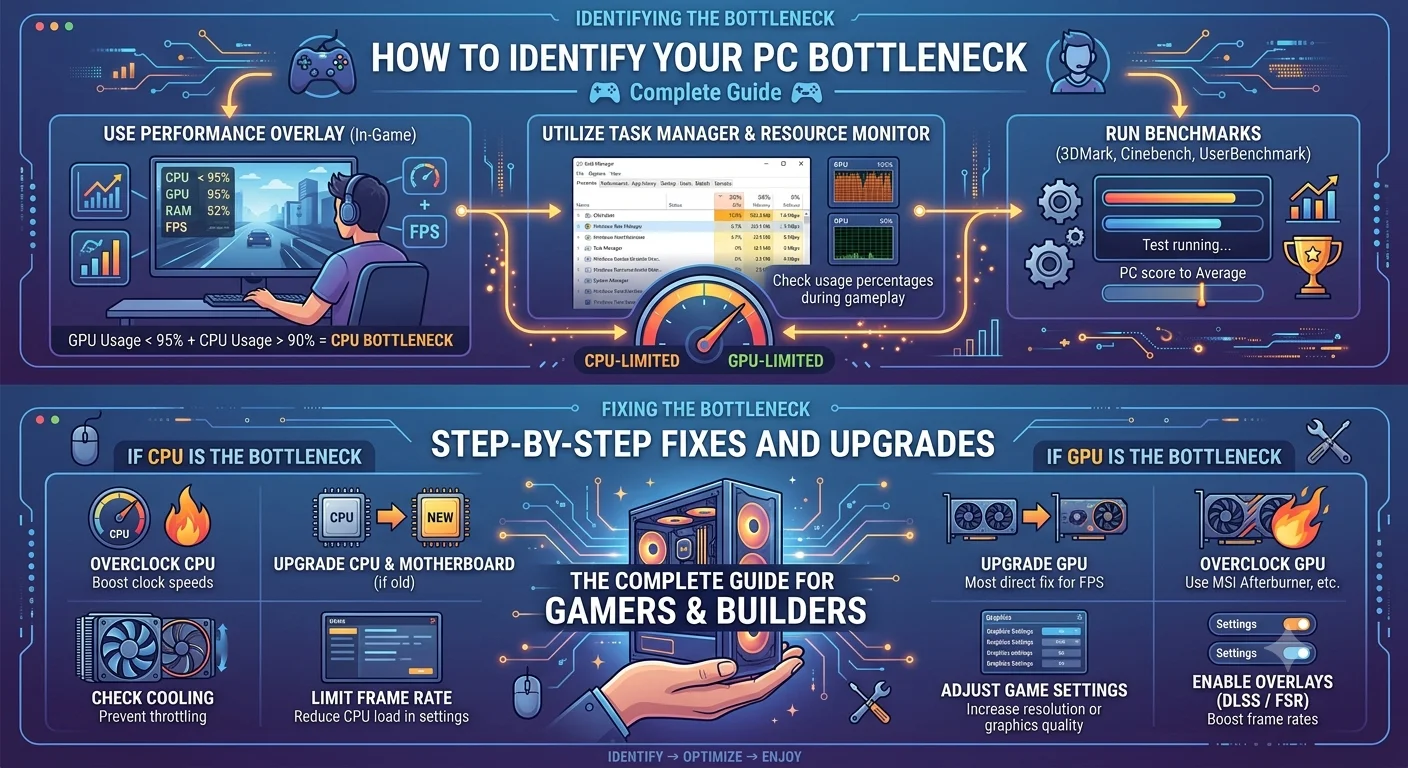
If you've ever noticed your games running slower than expected even after upgrading your GPU you may be dealing with a PC bottleneck. Bottlenecks are one of the most misunderstood performance issues in PC building, yet they are extremely common. Understanding what a bottleneck is, how to detect it, and how to fix it can save you hundreds of dollars in unnecessary hardware upgrades.
In this guide, we'll walk you through everything you need to know about PC bottlenecks from the basics to real-world troubleshooting so you can get the best performance out of your system. You can also use the Bottleneck Calculator to instantly check your own CPU and GPU pairing for free.
What Is a PC Bottleneck?
A bottleneck in a PC occurs when one hardware component is significantly slower or less powerful than another, causing the weaker part to limit the overall system's performance. Think of it like a pipe system if one section of the pipe is narrow, it restricts the total flow of water regardless of how wide the other pipes are.
In a typical gaming or productivity setup, the most common bottleneck pairs are:
• CPU vs GPU The processor cannot feed data to the graphics card fast enough
• GPU vs CPUThe graphics card cannot render frames fast enough to keep the CPU busy
• RAM vs CPU Insufficient or slow memory starves the processor of data
It's important to understand that every system has some degree of bottleneck — the goal is to keep it minimal, ideally below 10%, so that neither component is being significantly wasted.
CPU Bottleneck vs GPU Bottleneck: What's the Difference?
- What Is a PC Bottleneck?
- CPU Bottleneck vs GPU Bottleneck: What's the Difference?
- CPU Bottleneck
- GPU Bottleneck
- 5 Signs Your PC Has a Bottleneck
- How to Check Your PC for a Bottleneck
- Method 1: Real-Time Monitoring
- Method 2: Use a Bottleneck Calculator
- How to Fix a PC Bottleneck
- Fixing a CPU Bottleneck
- Fixing a GPU Bottleneck
- Can RAM Cause a Bottleneck?
- 3 Common Bottleneck Myths Debunked
- Before You Buy Any Hardware, Do This First
- Conclusion
CPU Bottleneck
A CPU bottleneck happens when your processor is too slow to keep up with your GPU. The graphics card sits idle, waiting for the CPU to deliver the next set of instructions. This results in reduced frame rates, frame time spikes, and poor 1% low performance all symptoms that make gameplay feel choppy even if your average FPS looks acceptable.
CPU bottlenecks are especially common in:
• Open-world games with heavy simulation (e.g. city builders, MMORPGs)
• Competitive first-person shooters at high frame rates (144Hz+)
• Systems pairing a new high-end GPU with an older generation processor
GPU Bottleneck
A GPU bottleneck means your graphics card is the limiting factor it's working at full capacity while the CPU still has processing headroom to spare. Interestingly, this is the preferred scenario for most gamers, because it means you're fully utilizing your most expensive component.
GPU bottlenecks are most common at higher resolutions like 1440p and 4K, where the graphics card must process far more pixels per frame. At these resolutions, even a strong CPU will rarely be the limiting factor.
5 Signs Your PC Has a Bottleneck
Not sure whether your system is being held back? Look for these warning signs:
• GPU usage consistently below 85–90% during gaming: This is one of the strongest indicators of a CPU bottleneck. Your graphics card should be working hard during demanding games.
• CPU usage pinned at 100%: If your processor maxes out while the GPU has headroom, you've confirmed a CPU bottleneck.
• Poor 1% and 0.1% lows: Stuttery gameplay with dips in minimum frame rates often points to the CPU struggling to maintain consistent frame delivery.
• Performance doesn't scale with settings: If lowering graphical settings doesn't improve FPS, the GPU likely isn't the problem check the CPU instead.
• A new GPU shows disappointing results: You upgraded to a powerful graphics card but saw minimal performance gains classic CPU bottleneck territory.

How to Check Your PC for a Bottleneck
There are two primary methods to check for bottlenecks: real-time hardware monitoring and online bottleneck calculators.
Method 1: Real-Time Monitoring
Use free tools like MSI Afterburner, HWiNFO64, or Task Manager to monitor your CPU and GPU usage while gaming. Launch a demanding game, play for 10–15 minutes, and observe the usage readings. A consistent GPU usage above 95–99% with CPU usage below 80% indicates a healthy, GPU-bound system. If the situation is reversed, your CPU is the problem.
Method 2: Use a Bottleneck Calculator
The fastest way to understand your hardware pairing is to use an online tool. Simply enter your CPU model, GPU model, RAM size, and target resolution and the calculator instantly tells you the bottleneck percentage and which component is the limiting factor.
Recommended Articles
 GENERAL POSTS
 GENERAL POSTS
 GENERAL POSTS
 GENERAL POSTS
The FPS Calculator goes even further it estimates your actual gaming frame rates based on your hardware and game settings, giving you a concrete picture of expected performance before you spend money on upgrades.
How to Fix a PC Bottleneck
Once you've identified the bottleneck, the fix depends on which component is the limiting factor and how severe the imbalance is.
Fixing a CPU Bottleneck
• Upgrade your processor: The most direct solution. Choose a CPU that matches your GPU's performance tier.
• Overclock your CPU: If your processor supports it, overclocking can squeeze extra performance without cost.
• Reduce in-game CPU load: Lower settings that stress the CPU, such as NPC density, physics quality, or simulation draw distances.
• Increase resolution: Raising resolution shifts more load onto the GPU, reducing CPU bottleneck severity without a hardware purchase.
Fixing a GPU Bottleneck
• Upgrade your graphics card: The definitive solution when the GPU is limiting performance.
• Lower graphical settings: Reducing texture resolution, anti-aliasing, and shadow quality reduces GPU load and increases frame rates.
• Overclock your GPU: Tools like MSI Afterburner allow safe overclocking of your graphics card for a free performance boost.
Can RAM Cause a Bottleneck?
Yes and this is one of the most overlooked performance limiters in PC builds. Insufficient RAM (less than 16GB for modern gaming) or RAM running at speeds below your CPU's recommended frequency can create a memory bandwidth bottleneck. This starves the processor of data, causing it to stall and indirectly throttling GPU performance as well.
- IT Word Search: The Smartest Way to Learn Technology Terminology
- Why Online Calculators Have Become Essential Everyday Tools
- Stylish Name Generator Tool: The Ultimate Guide to Creating Cool and Fancy Names Online
For most gaming systems in 2024 and beyond, 16GB of DDR4 running at 3200 MHz or faster is the recommended minimum. If you're using a Ryzen processor, AMD's Infinity Fabric is particularly sensitive to RAM speed running at or above the rated JEDEC speeds makes a meaningful difference in both gaming and productivity performance.
3 Common Bottleneck Myths Debunked
• Myth: Any bottleneck is bad. Reality: All systems have some imbalance. Under 10% is perfectly fine and essentially undetectable in real-world use.
• Myth: A bottleneck damages hardware. Reality: A bottleneck only means underutilization. It doesn't cause wear, heat issues, or any physical damage.
• Myth: Bottleneck calculators are perfectly precise. Reality: They provide highly reliable estimates based on benchmarks, but real-world results can vary due to RAM speeds, thermals, and driver optimizations.
Before You Buy Any Hardware, Do This First
One of the best uses of a bottleneck calculator is pre-purchase planning. Before you invest in a new CPU or GPU, test your intended combination online first. Enter your current components alongside the prospective upgrade to see if the new hardware will actually perform to its potential in your system or whether a bottleneck will hold it back.
For example, if you're considering upgrading from a mid-range GPU to a flagship card, but your CPU is several generations old, the calculator may reveal a significant CPU bottleneck that would prevent the new GPU from delivering its expected performance gain. In that case, upgrading both components or the CPU first would be the smarter choice.
This simple step can save you significant money and prevent the frustration of a disappointing upgrade.
Conclusion
PC bottlenecks are a natural part of how computer hardware works, but understanding them puts you firmly in control of your build's performance. Whether you're diagnosing poor gaming performance, planning your next upgrade, or building a new system from scratch, knowing how to identify and address bottlenecks is a fundamental skill for any PC enthusiast.
The key takeaways are simple: keep your CPU and GPU in the same performance tier, monitor usage statistics during gameplay, don't overlook RAM speed, and always run a bottleneck check before making a hardware purchase. A balanced system doesn't just perform better it represents better value for your money.
Ready to check your own setup? Head over to the Bottleneck Calculator and get your results in seconds. It's free, fast, and one of the smartest moves you can make as a PC builder.